

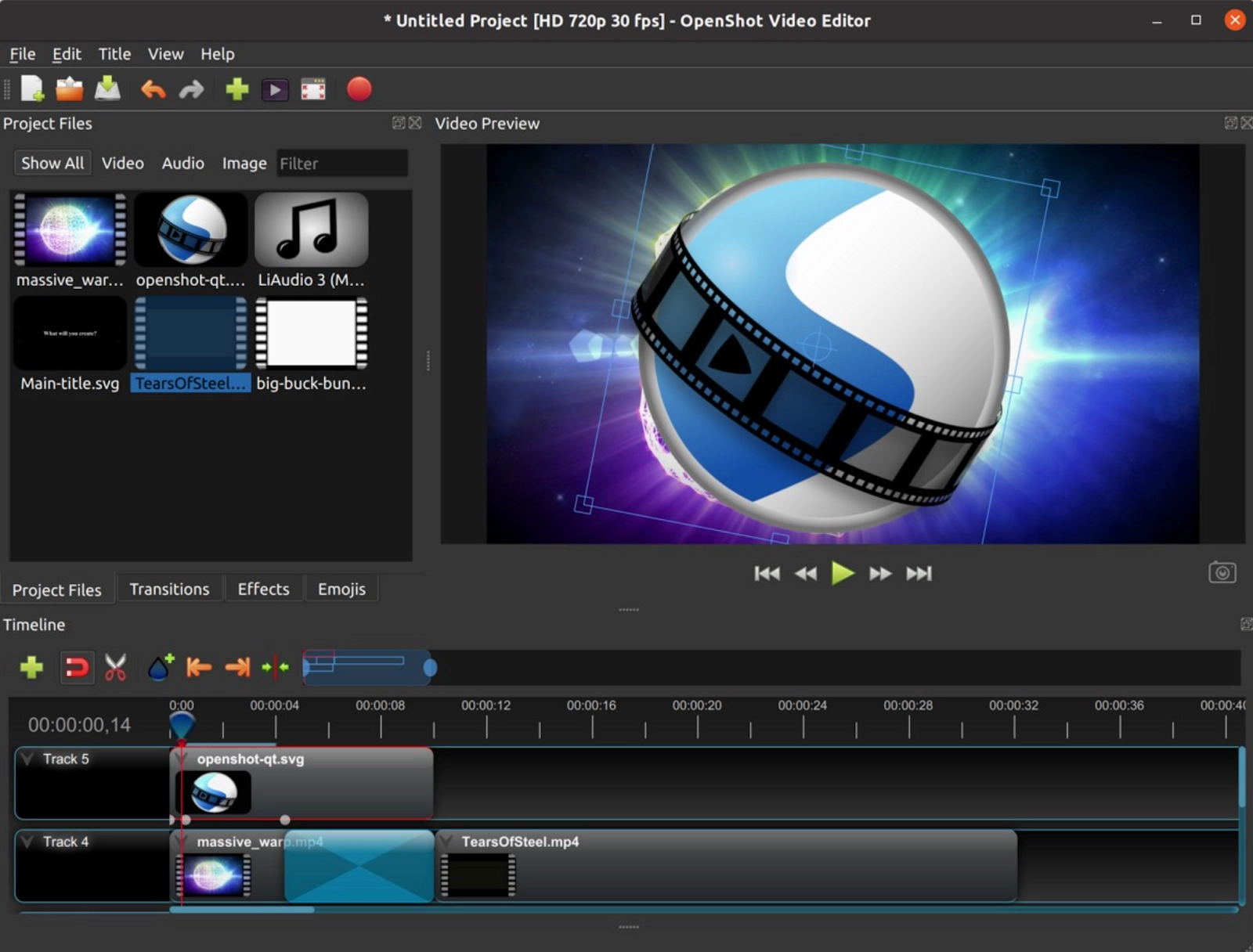
If you have ever tried to share a video online only to realize it is too long, the wrong shape, or looks blurry after editing, you are not alone. Most people do not have the time or technical skills to wrestle with complicated video software just to trim a few seconds or resize a clip. The good news is that free, browser-based tools now make it possible to trim videos, adjust aspect ratios, and keep your footage looking sharp — no downloads, no design degree required. Whether you are posting to Instagram, TikTok, YouTube, or LinkedIn, this guide walks you through everything you need to know.
Why Trimming and Aspect Ratio Both Matter for Online Video
Trimming and resizing are two different problems, but they almost always go hand in hand. You might trim your video to remove a slow intro or an awkward pause at the end, but the moment you go to post it somewhere, you realize the dimensions are all wrong. A horizontal video looks strange as an Instagram Story. A vertical clip looks tiny on a YouTube channel. When a tool can handle both tasks in one place, you save a significant amount of time.
Video quality is the other piece of the puzzle that trips people up. Many free tools compress your footage so aggressively that the output looks pixelated or washed out. When you are creating content to represent a brand, a small business, or even a personal creative project, that kind of quality loss is frustrating. The best free tools preserve the clarity of your original file even after trimming and reformatting.
The combination of all three — trimming, aspect ratio control, and quality preservation — used to require paid software. That is no longer the case, and understanding what to look for in a free online tool will help you work smarter and faster.
What to Look for in a Free Online Video Trimmer
Not every browser-based video editor is created equal. Some have great trimming features but limit your export resolution. Others support aspect ratio changes but cap the file size so low that anything longer than a minute gets rejected. Here is what to prioritize when evaluating any free tool:
- File size and length limits: Look for tools that accept files up to at least 1GB and support clips that are several minutes long or more.
- Aspect ratio presets: The tool should offer presets for the most common formats: 16:9 (landscape), 9:16 (portrait/vertical), and 1:1 (square).
- Export quality: High-resolution MP4 output is the standard to look for. Avoid tools that only let you download in low-resolution formats unless you upgrade.
- No watermark on free exports: Many tools add a visible watermark to free downloads. Check the terms before investing time in your edit.
- Works in the browser without installation: The whole point of a free online tool is that it works immediately without asking you to download anything.
- Mobile-friendly interface: If you shoot on your phone, you may want to edit on your phone too. A responsive, mobile-compatible editor saves you extra steps.
10 Tips for Trimming and Resizing Videos Online Like a Pro
1. Trim Before You Resize
Always cut your video to the right length before you change the aspect ratio. If you resize first, you may find yourself repositioning the frame multiple times as you experiment with where to start and end the clip. Trim first, then reformat.
2. Use the Handlebar Method for Precision
Most online trimmers let you drag handles at the start and end of a timeline to set your clip boundaries. This is faster and more intuitive than entering timecodes manually — especially if you are new to video editing. Drag slowly and play back the result before committing.
3. Enter Timecodes Manually for Exact Cuts
Once you get comfortable, use the manual timecode entry option if your tool offers it. This is especially useful when you are cutting to a specific second, such as syncing a clip to a beat or hitting a platform’s exact time limit (60 seconds for Instagram Reels, for example).
4. Know Your Platform’s Preferred Aspect Ratio Before You Start
Different platforms have different requirements. Instagram Stories and TikTok prefer 9:16 vertical. YouTube is 16:9 horizontal. Instagram feed posts and WhatsApp often look best at 1:1 square. Facebook supports multiple formats, but horizontal tends to perform better for desktop viewers. Knowing your destination ahead of time lets you reframe your clip with intention rather than guesswork.
5. Use a Drag-to-Reframe Feature When Changing Aspect Ratios
When you switch from one aspect ratio to another, part of your video frame will get cropped. Good tools let you drag the video within the new frame so you can control exactly what stays visible. This is the difference between your subject being centered and accidentally cutting off someone’s head.
6. Try the Adobe Express Video Trimmer for a Fast, All-in-One Workflow
One practical way to handle trimming and aspect ratio changes in a single session is to trim video using Adobe Express. The process is straightforward: upload your clip (up to 1GB), drag the handlebars to set your start and end points, then select your preferred aspect ratio from the available presets. You can drag the video within the new frame to position your subject exactly where you want it. When you are done, you can download a high-resolution MP4 or continue editing in the full Adobe Express editor to add text, music, or other elements. It works directly in the browser on both desktop and mobile, with no installation required.
7. Mute the Original Audio If You Plan to Add Music or Voiceover
Many free trimmers include a mute option, which is more useful than it sounds. If your original video has background noise, wind, or ambient sound you do not want, muting before export keeps your audio layer clean. You can then add music or narration in a subsequent editing step without fighting against unwanted background sound.
8. Download Your Trimmed Clip Before Making Further Changes
Always save a copy of your freshly trimmed video before you continue editing. This gives you a clean baseline to return to if you want to reformat the same clip for a second platform or make a different version later. Treating each major editing step as its own saved file prevents you from losing work.
9. Check the Output File Before Posting
This sounds obvious, but many people skip the preview step. Play back your downloaded file on your actual device before uploading it to social media. Look for any sudden cuts, unexpected black frames, or compression artifacts. Catching these issues before you post saves you from having to delete and re-upload.
10. Use a Consistent Aspect Ratio Strategy Across Your Content
If you create content regularly, decide on a primary aspect ratio for each platform and stick with it. This makes your editing workflow faster over time because you already know the target format. It also gives your content a more consistent, polished look across your channels.
How Aspect Ratio Affects Video Quality (and What You Can Control)
Changing the aspect ratio of a video does not inherently degrade quality, but how the tool handles the conversion does. When you switch from a wide 16:9 clip to a square 1:1 format, the tool has two choices: it can crop the sides of the frame (keeping full resolution but removing content), or it can scale the video down to fit (which may reduce sharpness).
The best tools crop rather than scale down, and they let you control exactly where the crop happens. This is why the drag-to-reframe feature mentioned earlier is so valuable. When you actively position your subject within the new frame, you are working with a crop, not a resize, which means your quality stays intact.
Where quality loss tends to sneak in is at the export stage. Some free tools compress aggressively to keep file sizes small and server costs low. Look for tools that export in MP4 format at the original resolution or as close to it as possible. If a tool only offers low-resolution exports on its free tier, that is a sign that quality preservation is not a priority.
Understanding Social Media Video Specs So You Do Not Have to Guess
One of the biggest time sinks in video editing is not the editing itself but the research phase where you try to figure out what format each platform actually wants. Here is a quick reference:
- TikTok: 9:16 vertical, max 10 minutes (though shorter content typically performs better), MP4 preferred
- Instagram Reels: 9:16 vertical, up to 90 seconds
- Instagram Feed: 1:1 square or 4:5 portrait, up to 60 seconds
- Instagram Stories: 9:16 vertical, up to 60 seconds
- YouTube: 16:9 horizontal is standard; Shorts use 9:16 vertical
- Facebook: 16:9 for feed posts; 9:16 for Stories
- LinkedIn: 16:9 horizontal preferred for feed posts, up to 10 minutes
Having this list nearby while you edit helps you make fast decisions about which aspect ratio to choose rather than second-guessing yourself.
Frequently Asked Questions
Does trimming a video reduce its quality?
Trimming a video by itself should not reduce quality at all, as long as the tool handles the export correctly. The act of cutting a video shorter only removes frames — it does not compress or alter the remaining footage. Where quality loss can occur is during the re-encoding process when the tool exports your trimmed file. Some free tools re-encode at a lower bitrate to reduce file size, which results in a softer, more compressed-looking output. To avoid this, use a tool that exports in high-resolution MP4 format and, where possible, check whether the tool preserves your original file’s resolution and bitrate settings. If you notice your exported video looks less sharp than your original, that is almost always an export setting issue rather than a trimming issue.
Can I change the aspect ratio of a video without cropping out important parts?
Yes, but it requires some manual adjustment on your end. When you switch aspect ratios, you will almost always lose some portion of the frame because the new shape does not match the original. The key is to use a tool that lets you reposition the video within the new frame so you can decide which part of the image to keep. For example, if you are converting a wide landscape shot to a vertical format and the main subject is on the left side of the frame, you would drag the video so that the left side is centered in the new portrait canvas. Taking that extra step ensures your subject stays fully visible even after the aspect ratio change. If you have a clip where important action happens across the full width of the frame, you may need to keep it in landscape format and adjust your posting strategy accordingly.
What is the maximum file size I should expect free tools to accept?
Most reputable free online video trimmers accept files in the range of 500MB to 1GB on their free tiers. This is enough for most casual video content, but if you are working with high-resolution footage (like 4K video from a modern smartphone), individual clips can exceed that limit fairly quickly. A one-minute 4K video shot at 60 frames per second can easily be 400MB or more, so longer clips may require compression before uploading. If you regularly work with large files, it is worth checking the file size limit of any tool before starting your session so you are not caught off guard. Some tools will process the upload and only tell you about the size restriction after you have already waited for the file to upload, which is particularly frustrating.
Do I need to create an account to use a free online video trimmer?
Many free browser-based video editors allow you to trim and download a clip without creating an account, though they may ask you to sign in to access additional features or to continue editing beyond a basic quick-action. Creating a free account is usually worth it if you plan to use the tool regularly, as it often gives you access to a project history, longer editing sessions, and more export options. For one-off tasks where you just need to quickly cut a clip and move on, account-free tools are convenient. If you are concerned about privacy, look for a tool from a well-established company that has a clear privacy policy about how uploaded video files are stored and deleted after processing. For managing and organizing your finished video content across platforms, a tool like Buffer can help you schedule and publish posts without having to juggle multiple platform dashboards at once.
Why does my video look different after I change the aspect ratio, even if I did not lose any quality?
This is a perception issue as much as a technical one, and it is completely normal. When you change a video from landscape to portrait or to a square format, the composition of the shot changes because you are viewing a different portion of the original frame. A shot that was carefully composed with the subject centered in a wide frame may now show the subject slightly off-center in a cropped square. Additionally, objects or people at the edges of the original frame may be cut off entirely in the new format. The video itself has not lost quality in the traditional sense, but the visual experience is different because you are literally looking at a different slice of the image. This is why repositioning your subject within the new frame — by dragging the video to center your focal point — makes such a meaningful difference in how professional the final result looks, even at the exact same resolution.
Conclusion
Trimming a video and adjusting its aspect ratio no longer requires expensive software, a powerful computer, or hours of learning a complicated interface. Free browser-based tools have made the entire process accessible to anyone with an internet connection, a file to upload, and a clear sense of where they want to share their content. The key is choosing a tool that handles all three priorities at once: clean trimming, flexible aspect ratio options, and high-quality exports.
Take a few minutes to get familiar with the tips in this guide, bookmark your preferred tool, and save the aspect ratio reference so you are not hunting for specs every time you sit down to edit. Once you have done it a few times, the whole workflow from raw clip to platform-ready video becomes genuinely fast. That is the goal: less friction between your idea and your audience.
